
Turning a Long Video into a Clean Clip for Instagram and TikTok
A four-minute horizontal recording and a fifteen-second vertical clip are different problems, and solving them in the wrong order shows.
By PulsarKit · ·
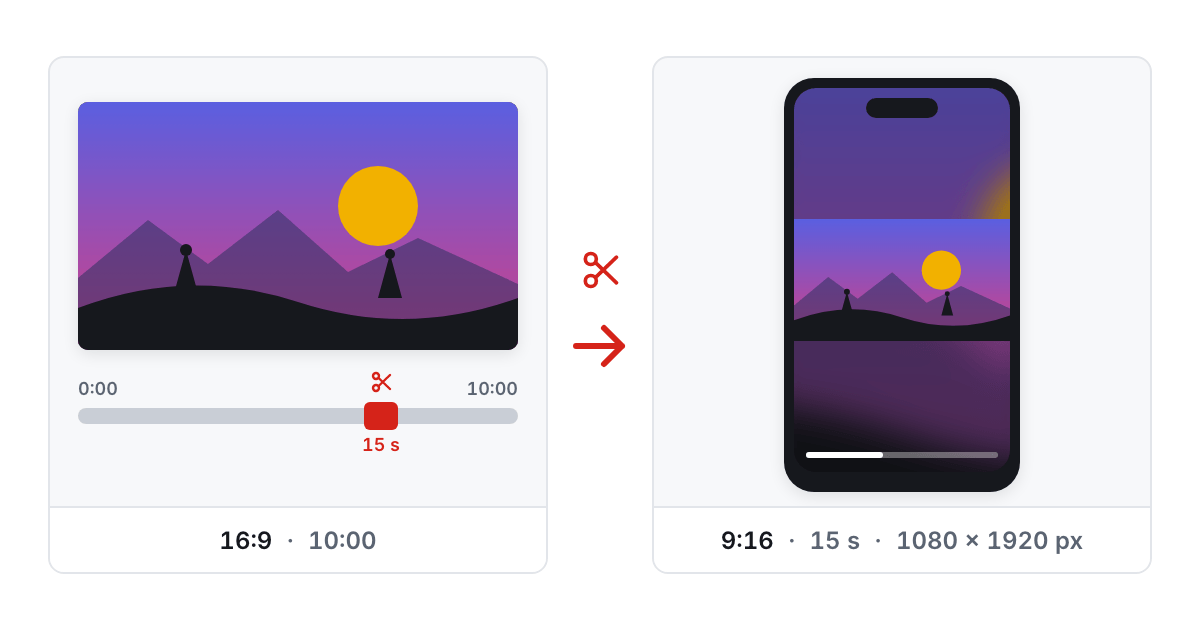
Cut first, reshape second
The two jobs are separate. Cutting a long recording down with Trim Video to the part worth watching is about time: removing the four minutes nobody needed before the good ten seconds. Fitting that remaining clip to a vertical, 9:16 frame is about shape: deciding what happens to a horizontal recording that doesn't match a phone screen. Doing the cut first means the reshaping step only has to work on the footage that is going out, rather than spending encoder time and quality on four minutes that get thrown away afterwards anyway.
Cutting properly also means the trim lands where you dragged the handle, not several seconds earlier. Tools that copy a video stream without decoding it can only cut on a keyframe, one of the periodic full pictures in the file, and they typically land up to ten seconds before the mark you chose. Decoding and re-encoding the short section instead means the first frame of the result really is the frame you picked.
Why the frame has to be reshaped, not just cropped
Instagram Reels, Stories and TikTok all expect the same 1080×1920 vertical frame, and a horizontal or square source doesn't fill it until a decision is made about the leftover space. Cropping with Crop Video throws footage away entirely; the sides of the shot are just gone. Stretching keeps everything but distorts every face and straight line in it, which reads as a mistake in the first half-second, right when a viewer decides whether to keep watching or scroll past. Padding the gap with a blurred, stretched copy of the same footage, which is what For Instagram and For TikTok do with the leftover space, keeps the whole original frame visible and undistorted. Nearly every Reel or TikTok clip you have scrolled past already uses that effect, whether or not you noticed it as a technique.
Instagram's three shapes are not interchangeable
Reels and Stories both target the same 1080×1920 vertical frame that fills a phone screen edge to edge. Feed uses 1080×1350, the taller 4:5 portrait ratio that Instagram gives more room to in a scrolling timeline than the square posts that were once common there. Pick the wrong one up front and Instagram's own layout re-crops the video again after upload, which is a second, less visible reason horizontal footage often looks worse on the platform than it needs to. TikTok has one shape to worry about, a fixed 1080×1920, which makes it the simpler of the two once the source clip is the right length. The same trimmed clip can be reshaped for each platform separately, so the choice of frame doesn't have to be made before the cut.
Fitting the size limit without redoing the whole export
Both platforms care about file size as much as shape. Instagram's rough 100 MB ceiling and TikTok's own limits are best met by computing a bitrate from the clip's length and the chosen audio quality, then measuring the result and adjusting over a few passes if it missed, rather than picking one bitrate and hoping. A long Instagram Story is a special case. Stories play in fixed sixty-second segments regardless of the file behind them, so a longer clip isn't just compressed. It is split into that many sixty-second cards, each sized to fit on its own, and delivered together as one archive ready to post in sequence.
One more pass never hurts, but do it in order
Reshaping and resizing both re-encode the video once, so doing them out of order costs a second generation of quality loss you didn't need to pay for. Trimming after reshaping means the padded, resized footage gets decoded and re-encoded all over again for no reason. The order that keeps the most quality and wastes the least processing time is this: trim to the exact stretch first, then reshape and compress that short clip to the platform's frame and size in one remaining pass.
Step by step on a phone
The whole chain runs in a phone browser, with one caveat up front: a phone has less memory and a slower encoder than a laptop, so a 1080p recording close to the five minutes and 200 MB these tools accept is better cut on a computer, while a clip of a minute or two is fine on the phone itself. Open Trim Video, add the recording (MP4, MOV, MKV, WebM or AVI), drag the two handles on the track to the start and the end you want, press Trim video and watch the result in the player. Then download the short MP4: that also keeps it in the browser for an hour as the input for the next tool.
Now open For Instagram or For TikTok: the trimmed clip is waiting there as the file from your last step, one tap away. For Instagram, pick Reels, Feed or Story; TikTok has a single frame, so there is nothing to choose. Leave the fill on the blurred background unless the footage is a screen recording or graphics, where a solid color looks cleaner. Audio stays at 128 kbps by default; 96 or 64 is enough for a voice-over and saves a little size. The encoder is the one built into the browser, which is why the page asks for Chrome 94 or Safari 26 or newer, and why nothing is uploaded: the file is read, re-encoded and written back out on the phone. A Story longer than sixty seconds comes back as a ZIP of cards rather than a single file, so expect that.
Tools used in this article
 Trim VideoKeep only the part of a video you need. Pick the start and the end, and the cut lands exactly on the frame you chose.
 For InstagramFit any video to Instagram Reels, Feed or Story in your browser: a vertical frame, filled-in edges, and a size the app accepts.
 For TikTokFit any video to TikTok's vertical 9:16 frame in your browser. Blurred or black bars, keep the sound, nothing is uploaded anywhere.
 Crop VideoCut a video down to the part of the frame that matters. Drag the box over the picture, keep the sound, upload nothing.
Read next
- WebP vs AVIF vs JPEG, Measured on One Phone PhotoWe ran one 12-megapixel phone photo, a screenshot and a transparent logo through JPEG, WebP and AVIF in the browser. Here are the file sizes at matched quality, the encoding times and the traces each format leaves.
- US Visa Photo 2 × 2 Inches: Making the 600 × 600 File at HomeA US visa photo is a 2 × 2 inch square; online, it is a JPEG of 600 to 1200 pixels a side, no heavier than 240 kB. Here is the path from a phone photo to that file, with numbers from one run.
- A PDFgear Alternative: What Matches and Where Your File GoesOn October 20, 2026, we matched the 37 cards on PDFgear's online tools page against PulsarKit. 34 of the 36 tools behind them had a counterpart; PDF to PSD and PSD to PDF had none.