
Removing a Background Without Photoshop, and Being Honest About It
AI background removal has become good, but it is still not magic. Here's what it does, and exactly where it still struggles.
By PulsarKit · ·
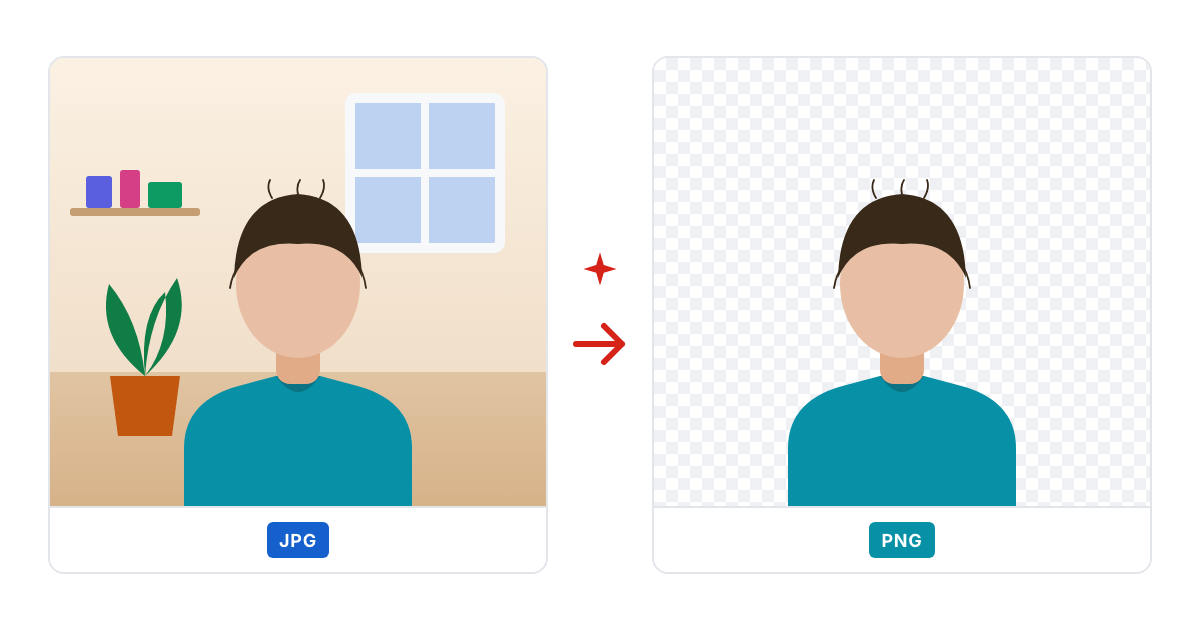
The model isn't detecting colour, it's identifying a subject
A tool built around a segmentation model, as Remove Background is, looks at an entire photograph and decides, pixel by pixel, what belongs to the main subject and what counts as everything behind it. That is a different approach from the older technique of removing one specific colour the tool is pointed at, like a flat green or white studio background, which is what Transparent Background still does, and does well, when the backdrop really is one flat colour. The difference is why this kind of tool works on real, complicated photographs, a person standing in a cluttered room or an object sitting on a messy desk, where there is no single uniform colour to key out. There is only a subject to be recognised as one against everything else in the frame.
The hard part was never the middle of the subject
Cutting out the broad, solid body of a person or an object is the comparatively easy part of this problem for any modern model. The hard part is the boundary itself, and hair is the clearest example of why. A single strand is frequently thinner than one pixel in the image, and at that pixel it is often half subject and half background, not cleanly one or the other. That is a different and harder problem than finding where a solid object ends. A model can place the body of a person correctly and still leave a ragged, jagged outline around the head, and it is the outline that people notice first.
A pale rim around the subject is a specific, well-understood artefact
A cut-out photographed against a white studio backdrop and then dropped onto a dark background often shows a faint pale glow around the hair and edges. That is not a random rendering glitch. It happens because a half-transparent hair pixel photographed against white carries some of that white mixed directly into its colour. Setting that edge pixel to half-transparent isn't enough to fix it on its own. The background colour has to be mathematically unmixed back out of the pixel's colour value, not merely faded out, or the white keeps showing through as a visible rim on whatever new background the cutout is placed onto.
Precision at the edges costs real time, and that trade-off is worth understanding
Working out how much subject and how much background blend together at each edge pixel, and then unmixing the colour correctly for each one, takes measurably longer to compute than blurring the mask uniformly across the whole boundary and calling it finished. A faster mode that skips that per-pixel edge analysis is a reasonable choice for a quick, casual result where a few pixels of imperfect edge don't matter for the intended use. The slower, more careful mode earns its extra time on a portrait or a product photo, where those edges will be looked at closely by someone.
A subject of similar colour to its background remains a hard case
Dark hair photographed against a dark wall, or a subject wearing colours nearly identical to whatever sits behind them, gives any segmentation model very little colour difference to measure at the boundary. The edge-refinement techniques that work so well elsewhere depend on the subject and background differing in colour to begin with. This remains a difficult case for every tool in this category, including the well-known paid ones, and expecting a materially better result from switching services is usually the wrong fix. Cropping closer to the subject with Crop Image, a background swap before the cut, or simply better contrast in the original shot helps far more than trying a different model.
Where the photo goes, and what reaches our server
Remove Background works the same way on every device, a laptop or a desktop as much as a phone or a tablet, and nothing is downloaded into the browser. The network that finds the subject runs on our server. The page shrinks the frame to a 1024 by 1024 copy, sends only that copy over an encrypted connection and gets the mask back; the cut-out, the edge refinement, the background colour and the PNG are then made in the browser from the photo itself, so the original file never leaves your device. The reduced copy is deleted as soon as the mask is ready and the mask itself within about two hours; each photo sent this way counts towards the shared hourly limit of the server tools. The reason for this split is plain. Running the network inside a tab means downloading a large model file first and then holding more than 2 GB of memory while it works: a mobile browser closes the tab long before that, and many computers spend half a minute on one photo or fail on some graphics cards. On the server the mask comes back in a few seconds on any device. A 1024 by 1024 copy is enough for that job, because it is the size the network works at anyway; the fine detail along hair and edges comes from the refinement step, which reads the photo itself in your browser. The finished file is written from raw pixels, so the camera model, the time and the GPS position stored in the original do not travel into the PNG.
Settings that matter more than switching models
Before trying another service, match the controls this one already has to the photo in front of you. A product shot for a shop listing usually wants White background rather than transparency: marketplaces tend to ask for white, and one flat white area makes a far smaller PNG than a cut-out carrying an alpha channel. A portrait headed for a slide or a poster wants Transparent PNG, with Edge detail left on Precise edges and Edge softness at its default of two pixels. A cat, a dog or a head of curly hair looks more natural with the softness raised to six or more, so the outline melts into the fur or the curls instead of stopping at a line; an icon or a graphic with crisp corners wants it at zero. Fast is fine for a rough draft, but it skips the colour unmixing, so the pale rim described above can come back on a dark backdrop. Longest side caps the size of the result: the default 2048 pixels covers screens and web pages, 4096 is for print on a machine with memory to spare, and 1024 is the fallback when the tab gives up. Whatever you pick, the file comes back as a PNG, and up to twenty photos go through with the same settings into one ZIP. If the backdrop is already one flat colour, Transparent Background is quicker still and sends nothing to a server at all.
Tools used in this article
 Remove BackgroundCut the subject out of any photo with AI: our server finds it in a reduced 1024 × 1024 copy, and your browser makes the cut-out from the photo itself. Download a transparent PNG, or the same cut-out on a solid colour.
 Transparent BackgroundPick the background colour and everything close to it turns transparent: green screens, white backdrops, scans and flat logos, in a blink.
 Crop ImageDrag a frame over your photo or type exact pixels, then download just the part you kept. Nothing leaves your browser.
Read next
- WebP vs AVIF vs JPEG, Measured on One Phone PhotoWe ran one 12-megapixel phone photo, a screenshot and a transparent logo through JPEG, WebP and AVIF in the browser. Here are the file sizes at matched quality, the encoding times and the traces each format leaves.
- US Visa Photo 2 × 2 Inches: Making the 600 × 600 File at HomeA US visa photo is a 2 × 2 inch square; online, it is a JPEG of 600 to 1200 pixels a side, no heavier than 240 kB. Here is the path from a phone photo to that file, with numbers from one run.
- An iLoveIMG Alternative for Image Jobs: What Matches, What Is MissingOn October 20, 2026, we matched the 13 tool cards on iLoveIMG's home page against PulsarKit. 11 had a counterpart; Upscale Image had none, and Blur face only came close.