
Batch-Converting a Folder of iPhone HEIC Photos to JPG
Converting a folder of iPhone photos to JPG sounds trivial, until a handful of them come back rotated the wrong way for no obvious reason.
By PulsarKit · ·
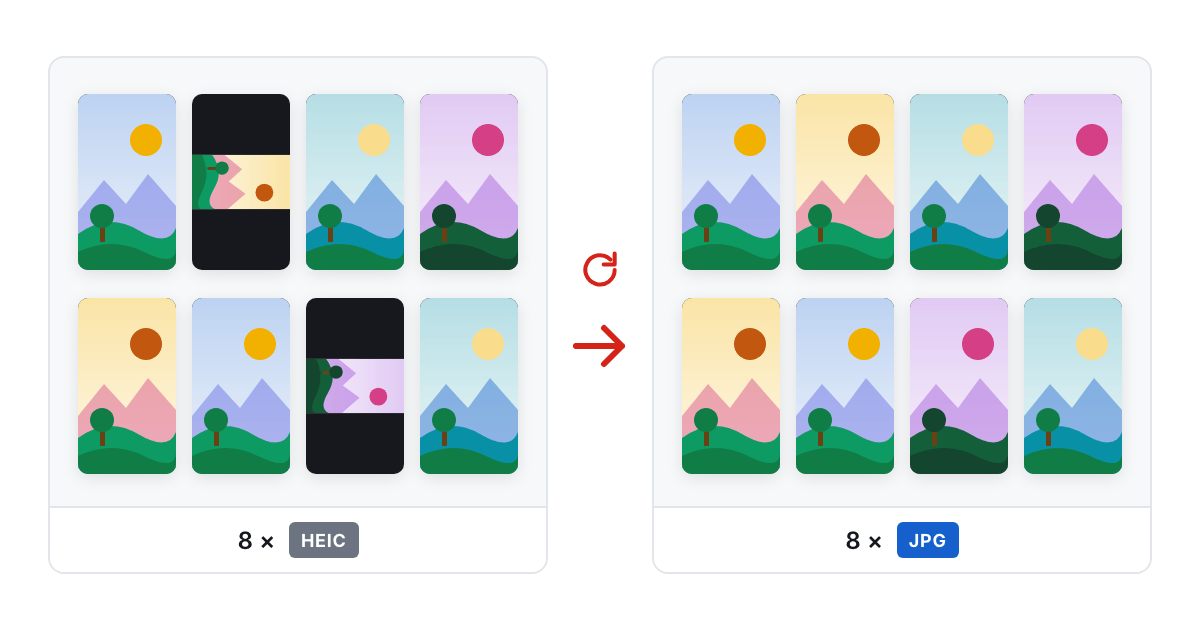
Why some photos come out sideways and others don't
A HEIC file can describe which way up a photo goes in two different places, and they don't always agree. Modern iPhones write a rotation property directly into the file's container, so a correct decoder already hands back an upright photo without touching anything else. Older phones, an iPhone 7 for example, write nothing into the container and record the rotation only in the older EXIF Orientation tag. A decoder that reads only the container gets back a frame lying on its side, and a decoder that reads only the EXIF tag can rotate a modern photo that was already upright.
This is why a batch of a hundred photos synced from an old phone and a new one can come back from a converter with some upright and some sideways, seemingly at random. The converter is applying one rule consistently to files that don't follow one rule. A correct conversion, which is what HEIC to JPG does, checks the container first, falls back to the EXIF tag only when the container says nothing, and then bakes the correction into the pixels so nothing downstream rotates the file a third time.
What should travel with the photo, and what you get to decide
A converted JPG can carry the same capture date, camera model, lens and exposure settings the original HEIC had, rewritten into a standard EXIF block the way a camera would have written them in the first place. GPS coordinates are a separate switch from the rest of that data, and a photo that is already a JPG can have them stripped afterwards with Remove Image Metadata. That matters, because keeping the date and dropping the location is what most people want before posting a batch of photos somewhere public. The thumbnail embedded in the original file is worth discarding in any case. It shows the photo at its original, uncorrected orientation, and carrying a stale preview into the converted file invites the same rotation confusion back in through a side door.
A file that says .heic and isn't quite HEIC
Some cameras and messaging apps save AV1-compressed video frames or images inside a container and still name the result with a .heic extension, purely by convention. Deciding the format by reading the file's own bytes rather than trusting its name catches this. Such a file gets identified as AVIF and decoded with the right codec, instead of failing or producing a broken image. A file whose container matches neither format, a video clip renamed by mistake for instance, is better rejected with a clear message than turned into garbage without a word.
A Live Photo converts to its still frame
A Live Photo's .heic file is only the still half of the pair. The moving part lives in a separate .mov file sitting next to it, which most converters never touch. Converting the .heic file on its own gets you the still frame stored as the container's primary image, a real photo at full resolution, not a low-resolution placeholder pulled from a thumbnail. If the motion matters too, that .mov file needs handling on its own, since converting the .heic file does nothing to bring it along.
Doing this for a whole camera roll at once
The part that matters for a folder of fifty or a hundred photos is that one bad file shouldn't stop the rest. A corrupted HEIC, a renamed video or a photo with an unusual container should be skipped with a clear reason, not abort the whole batch halfway through. The quality setting matters less than people expect here. A value around 90 out of 100 is close to visually identical to the original HEIC, and the size difference is smaller than most people notice, so it is a safe default to leave alone across an entire folder rather than tuning it photo by photo. Screenshots and graphics are the exception: those go through HEIC to PNG, which keeps every pixel instead of re-compressing them.
Doing it on the phone itself, and two mistakes to skip
The conversion does not need a computer. Open HEIC to JPG in Safari on the iPhone, pick the photos from the camera roll, and the work runs in the phone's browser: the decoder, a file of about 1 MB, is downloaded once and cached, and nothing else crosses the network. Safari often reports an empty file type for HEIC, so the picker goes by the .heic, .heif and .hif extensions as well. A batch takes up to 50 photos at 100 MB each and 500 MB in total; the progress bar counts finished files, and one that fails is skipped with a note instead of cancelling the rest. Several photos come back as one ZIP, a single one as a plain .jpg. Two mistakes are worth knowing. The first is trying to strip the location before converting: in a HEIC file the metadata is woven into the container, so convert first, with the GPS switch off if the photos are going somewhere public, and then run Remove Image Metadata on the JPGs if anything else has to go. The second is reaching for PNG because it sounds like the better format. PNG is lossless, so a 2 MB HEIC routinely becomes a 20 MB PNG, which pays off only when the photo will be edited further; for sharing, mail and upload forms, a JPG at the default quality 90 looks the same at roughly a tenth of the size.
Tools used in this article

 HEIC to JPGTurn iPhone HEIC photos into JPG files that open everywhere, with the date and the GPS tag kept, and the picture the right way up.
 HEIC to PNGConvert iPhone HEIC photos to lossless PNG when the next step is editing, such as background removal, layering or print, rather than sharing.
 Remove Image MetadataStrip the GPS location, the camera details and the author's name out of a photo before you post it, without touching a single pixel.
Read next
- WebP vs AVIF vs JPEG, Measured on One Phone PhotoWe ran one 12-megapixel phone photo, a screenshot and a transparent logo through JPEG, WebP and AVIF in the browser. Here are the file sizes at matched quality, the encoding times and the traces each format leaves.
- US Visa Photo 2 × 2 Inches: Making the 600 × 600 File at HomeA US visa photo is a 2 × 2 inch square; online, it is a JPEG of 600 to 1200 pixels a side, no heavier than 240 kB. Here is the path from a phone photo to that file, with numbers from one run.
- An iLoveIMG Alternative for Image Jobs: What Matches, What Is MissingOn October 20, 2026, we matched the 13 tool cards on iLoveIMG's home page against PulsarKit. 11 had a counterpart; Upscale Image had none, and Blur face only came close.