
Turning a Stack of Photos into One Properly Ordered PDF
A folder of photographed receipts or pages becomes a usable document in two separate steps: assembling it, and then getting the order right.
By PulsarKit · ·
A photo already carries the file's quality, so don't lose it converting
A photo saved as a JPG is already a compressed image, and a PDF page is perfectly capable of carrying that same compressed data untouched, without decoding and re-compressing it along the way. JPG to PDF converts that way, so the resulting document weighs roughly what the source photos already weighed. An image pulled back out of the finished PDF later is identical, byte for byte, to the photo you started with. There is no hidden quality loss happening quietly during assembly. It is easy to assume that loss is unavoidable, and it isn't.
File names rarely match the order pages need to be in
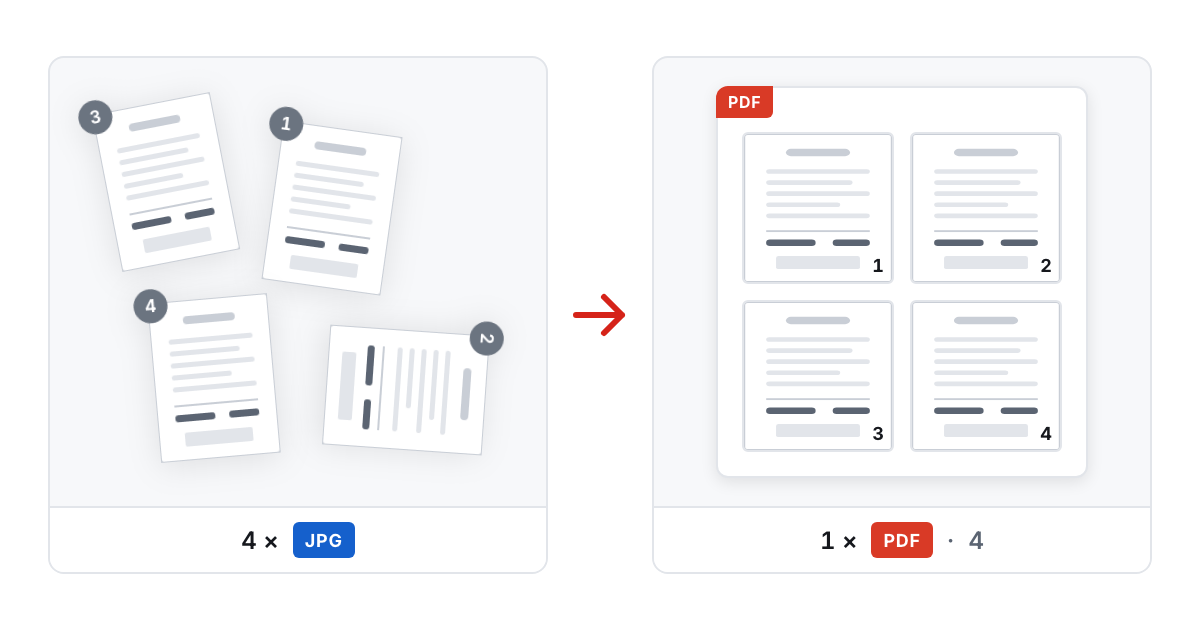
Photos taken with a phone are typically named by timestamp, which has nothing to do with the logical order a document needs to read in. Page four of a contract might well have been photographed before page one, if pages got shuffled or re-shot out of sequence during scanning. Building the PDF and getting the sequence right are two different jobs: assembling photos into pages, and then dragging those pages into the order a reader needs, independent of whatever order the files happened to arrive in.
Fixing one page shouldn't mean rebuilding the whole document
A page that turns out sideways, duplicated by mistake, or simply in the wrong spot doesn't require starting the assembly over from scratch. Rotating a single page, dropping a duplicate, or moving one page to a different position are each independent edits in Organize PDF to an already-built document. The sensible workflow is to assemble everything first and only then fix the handful of pages that need it, rather than trying to get every photo perfectly right before combining them.
Page size decisions matter more for printing than for reading on screen
Letting each page take on the exact size of its own photo keeps every image at its native proportions with nothing cropped or padded, which is the right choice for a document that will only ever be read on a screen. Forcing every page onto a fixed sheet size like A4 or Letter matters when the document is headed to a physical printer, since home printers generally can't print all the way to the edge of the paper and will crop a borderless page unexpectedly. Which one to pick depends on where the document is going next, not on which option sounds more correct in the abstract. A document that will be both read on screen and printed is usually better off on a fixed sheet size, since the margins cost nothing on a screen.
The finished PDF still isn't searchable, and that's a separate step
Assembling photographed pages into a PDF and getting them into the right order produces a real, shareable document, but it is still a collection of pictures. There is no text underneath any of it, so nothing in the file can be selected, copied or found with a search yet. Getting there means running OCR PDF over the finished document afterwards, which adds an invisible, precisely positioned text layer behind the pages without changing how they look. That is a separate step from assembly and ordering, not something that happens automatically along the way.
Step by step on a phone
The whole chain works on the phone that took the photos. Open JPG to PDF and add the pictures, up to 200 in one go; the page reads them in the browser, so nothing is uploaded, and it keeps working with the connection off once it has loaded. The rotation tag a phone writes into each picture is applied automatically, so a receipt photographed sideways comes out upright. Before building, drag the thumbnails into reading order, because that order, not the file names, decides the pages. Pick the page size for where the document is going: Fit for a file that will be read on a screen, A4 or Letter with a margin of about 10 mm for one that will be printed. Download the result, then open it in Organize PDF for anything that still needs fixing: a page can be moved with a finger, turned a quarter at a time, duplicated or dropped, and if the plan goes wrong, the Restore original order button puts every page back where it started; nothing is written until you save the file. The original on the phone is never modified; the fixed document is a new file. Leave the merge switch on unless each photo should become its own one-page PDF, in which case they arrive together in a ZIP.
What the numbers mean: why the PDF weighs what the photos weigh
A PDF is a container, not a compressor. Because the converter copies each JPEG stream into the document unchanged, ten photos of three megabytes each produce a document of roughly thirty megabytes, and assemble in about two seconds, since nothing is decoded on the way in. That is the right result for an archive and often the wrong one for an email attachment or an upload form. There are two ways to make it lighter, one on each side of the conversion. Before it, Resize Image can bring a 4000 by 3000 pixel phone photo down to about 1600 pixels on the long side, which is still more than a receipt or a page of text needs on a screen and cuts the pixel count roughly six times. After it, Compress PDF re-encodes the pictures inside the finished document at a chosen resolution and quality, 150 DPI and quality 65 at the default level, while leaving the page order and any text untouched. Which side to pick depends on whether a full-resolution copy is worth keeping: resizing first means the document never holds the full photos, while compressing afterwards leaves both, the heavy PDF for the archive and the light one for sending. One batch takes up to 200 photos and 500 MB; a longer set is converted in parts and joined with Merge PDF, which keeps your order and takes up to 500 MB in total.
Tools used in this article

 JPG to PDFTurn a folder of JPG photos into one PDF, in the order you choose, without re-compressing a single pixel.
 Organize PDFPut the pages of a document in the order you want, and rotate, duplicate or drop individual pages along the way.
 OCR PDFAdd a searchable text layer to a scanned PDF in 15 languages. Text becomes selectable, and tilted or sideways pages are straightened unless you switch that off. Runs on our server; files are deleted automatically within about two hours.
Read next
- A PDFgear Alternative: What Matches and Where Your File GoesOn October 20, 2026, we matched the 37 cards on PDFgear's online tools page against PulsarKit. 34 of the 36 tools behind them had a counterpart; PDF to PSD and PSD to PDF had none.
- Compressing a Scanned Book: What Each Level Does to 60 PagesA forum question asked how to shrink a 580-page book scan without hurting the text. We ran a 60-page scan through every level of Compress PDF and checked the pixels, the sizes and the words.
- iPhone Photos to One PDF: HEIC, Order, Size, What Leaves Your PhoneSeveral iPhone photos can become one PDF in Safari, with no app and no account. Here is how HEIC to PDF handles order, page size, Live Photos, dates and locations, and what stays on your phone.