
Why Your Compressed JPEG Still Looks Bad
A photo that looks soft after compressing usually has nothing to do with the compression setting you picked. It is the resolution doing that.
By PulsarKit · ·
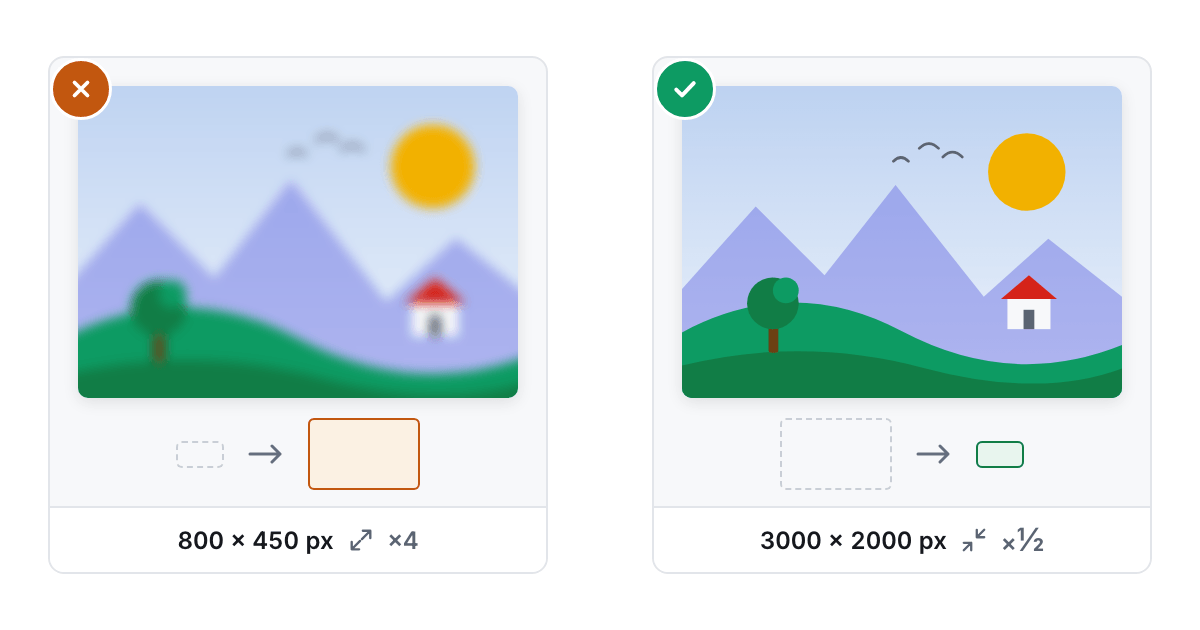
Compressing and resizing are two different levers
It is easy to assume one "make it smaller" tool does both jobs, but compressing and resizing act on different things. Compress Image re-encodes the pixels a photo already has at a lower quality, so the file gets lighter without changing its dimensions at all. A 3000×2000 JPEG compressed hard is still a 3000×2000 JPEG, just a softer one. Resize Image changes how many pixels the image has in the first place. A photo that looks blurry after "compressing" it is very often a photo that was resized, usually by whatever app handled it earlier, rather than one that was compressed too aggressively.
What the compression levels change
A compressor working on JPEG, WebP or AVIF is really just choosing a quality number between 0 and 100 and handing it to the encoder. A quality setting around 85 is close to visually identical to the source, with a modest size drop. 70 is where most ordinary photos land without a visible change, and it is a reasonable default. 55 is noticeably softer and shows up on close inspection, particularly in detailed textures like hair or foliage, so it suits a thumbnail more than a hero image. PNG has no quality slider at all, because it is lossless by definition. A PNG "level" instead controls how hard a lossless optimiser works to repack the same pixels more efficiently.
Compressing an already-compressed photo makes things worse, not better
Phone cameras already compress a photo hard before it ever reaches you, and running it through another aggressive compression pass does not find more room to save. It just throws away more detail on top of what the camera already discarded. If a recompressed file comes back the same size or larger than the source, that is a sign the image had little left to give, not a bug in the tool. A properly built compressor recognises this and returns your original file untouched rather than handing you a technically different copy that isn't any smaller.
The real cause of softness is usually the resolution
Stretching a small image up to fill a bigger space does not add detail that was never captured. It spreads the existing pixels over more area, and the result looks soft no matter how high the compression quality is set. This is why tools default to blocking upscaling past the original resolution. Enlarging a photo without saying so is a far more common cause of a "blurry" result than any compression setting, and no amount of quality slider adjustment fixes a photo that is simply being shown bigger than the pixels it has.
The order that works
Resize first, to the exact dimensions the photo will be shown at, and compress second, at a moderate quality level appropriate to what the image is for. Doing it the other way around, compressing first and then resizing later somewhere else in a pipeline you don't control, is how a perfectly reasonable quality-70 photo ends up stretched to twice its size and blamed on the wrong step. Get the pixel dimensions right first, and a middling compression setting will look better than a maximum-quality setting applied to an image that was never the right size to begin with. If the destination accepts it, Convert to WebP takes another quarter off the result at the same quality.
Common mistakes that make a photo look soft
Most soft photos come from one of four habits, and none of them is the quality slider. The first is letting a layout stretch the image: an 800-pixel-wide photo dropped into a slot that is 1600 pixels wide on a high-density screen is being enlarged by the browser, which is exactly the upscaling a resizer refuses to do by default. The second is compressing twice. A photo exported from a phone app at a low setting and then run through a compressor again loses detail at both steps, and the second pass saves far less than the first, because the camera's own compression already took the easy bytes. The third is choosing JPEG for the wrong kind of picture. Screenshots, charts and anything with text or hard edges show ringing around the letters at any lossy quality, while PNG or lossless WebP keep those edges exact, and lossless WebP usually stores the same pixels in a smaller file than PNG. The fourth is judging the result zoomed out. A thumbnail hides everything, so compare at 100% on the detail that matters, hair, foliage, small type, before deciding that a setting is good enough. Fix those four and the difference between quality 70 and quality 85 becomes hard to see.
A worked example with the numbers
Take a photo straight from a phone: 4000 by 3000 pixels, twelve million of them, headed for a page column 1200 pixels wide. Resizing it to 1200 by 900 leaves 1.08 million pixels, eleven times fewer than the original, and that reduction alone shrinks the file by far more than any compression setting could, before quality is touched at all. Resize Image downscales with a Lanczos3 filter, which keeps edges crisp where a plain box filter would blur them; it applies the phone's orientation tag first, so the result is upright, and it leaves the camera metadata behind. Then Compress Image at the Balanced level, quality 70, takes the resized file down again without changing a single pixel dimension. If the recompressed file would not be smaller than what went in, the original comes back untouched and the page says so, rather than handing over a technically different copy. If the destination accepts WebP, Convert to WebP can take the place of that second step: at its default quality 80 a WebP looks the same as a JPEG at quality 90 and weighs about a third less. Notice what the order does: the pixel count is settled first, so the quality setting works on the image that will actually be shown, not on one that will be shrunk again later.
Tools used in this article
 Compress ImageShrink JPG, PNG, WebP, AVIF and GIF files in your browser: pick a level that keeps the resolution, or, for all but GIF, a target size in KB or MB.
 Resize ImageChange the pixel dimensions of a photo by exact size, percentage or a ready preset, without leaving your browser.
 Convert to WebPTurn JPG, PNG, GIF, AVIF, BMP and HEIC images into WebP and cut a quarter to a third of their weight, without uploading anything.
Read next
- WebP vs AVIF vs JPEG, Measured on One Phone PhotoWe ran one 12-megapixel phone photo, a screenshot and a transparent logo through JPEG, WebP and AVIF in the browser. Here are the file sizes at matched quality, the encoding times and the traces each format leaves.
- US Visa Photo 2 × 2 Inches: Making the 600 × 600 File at HomeA US visa photo is a 2 × 2 inch square; online, it is a JPEG of 600 to 1200 pixels a side, no heavier than 240 kB. Here is the path from a phone photo to that file, with numbers from one run.
- An iLoveIMG Alternative for Image Jobs: What Matches, What Is MissingOn October 20, 2026, we matched the 13 tool cards on iLoveIMG's home page against PulsarKit. 11 had a counterpart; Upscale Image had none, and Blur face only came close.